
This browser can't use Bluetooth
Open this page in Google Chrome or Microsoft Edge on Windows, macOS, Linux or Android. Safari and Firefox don't support Web Bluetooth. On an iPhone or iPad, use the free Bluefy browser app.
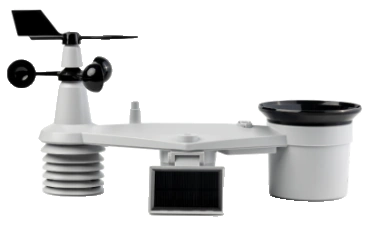
Update and configure your WS2001 (H2)
The H2 starts on the WeatherXM network. Connect over Bluetooth to update its firmware or to move it to The Things Network (TTN), ChirpStack or any other LoRaWAN network server with the Open Edition profile. It runs WeatherXM's own firmware, whose compact weather frame carries more data than the stock SenseCAP S2120 firmware, such as wind gust and rain total. Both network identities stay stored on the station, so you can switch back at any time.
Explore WeatherXM stations Payload decoder for your own network (.js) Firmware changelog
Connect to WS2001 (H2)
Make sure your station is powered on and within Bluetooth range.
- 1
Stand next to the station
Stay within a few metres during the update. A laptop or an Android phone both work.
- 2
Press the station RESET button once (first-time pairing only)
If the station has never been paired before, press RESET once. You only need this for the initial pairing; new computers can pair during the first 5 minutes after the restart. Don't hold RESET: holding it for 10 seconds resets the station to factory settings.
- 3
Connect and pick "WeatherXM WS2001"
Click Connect to WS2001 (H2) and select the station. If your computer asks to pair, accept it and let the pairing prompt finish.
WeatherXM WS2001 (H2)
Connected over Bluetooth- DevEUI
- –
- Firmware
- –
- Active network
- –
- LoRaWAN
- –
- Region
- –
- Upload interval
- –
- Battery
- –
Checking for firmware updates...
The update keeps the station's settings, both network profiles and the rain total.
The station's bootloader only accepts packages signed by WeatherXM and never installs an older version than the one it runs.
Your network setup
–
- 1
Registered on your server
–
- 2
Settings saved on the station
–
- 3
Station restarted
–
- 4
Joining your network
–
- 5
Joined
–
- 6
Data on your server
–
–
–
Register the station on your network server
The import file holds the settings you just saved on the station: DevEUI, JoinEUI, AppKey, LoRaWAN 1.0.4, the frequency plan and the payload decoder. In TTN open your application, End devices > Import end devices, choose The Things Stack JSON and select the file. It joins as soon as it is registered. The file holds your AppKey: keep it private.
–
- LoRaWAN
- –
- Since restart
- –
- Battery
- –
- Region
- –
- Upload interval
- –
- Firmware
- –
Live readings: waiting for the station...
This page stays connected over Bluetooth and checks the station every 10 seconds. Finishing or closing the page restarts the station once, as every Bluetooth session does; it then joins your network again by itself.
Choose which network this station reports to
Both identities stay stored on the station. Switching takes a few seconds; the station then restarts and joins the chosen network.
Your own network is active. Open the options to rejoin, change its settings or switch back to WeatherXM.
WeatherXM Network
The station's factory setup. It reports to WeatherXM over the Helium network with its provisioned keys, appears in the WeatherXM app and earns rewards. Nothing needs to be configured.
- WeatherXM app, network quality scoring and $WXM rewards
- Uploads every 3 minutes over Helium
- Data signed by the station's secure element
- Daily GNSS location check
–
Open Edition · Your Own LoRaWAN
Sends a compact weather frame (20 bytes from V5.1, including how steady the wind direction was; 16 bytes on V4.9–V4.10, 24 bytes on older firmware) to The Things Network, ChirpStack or any LoRaWAN 1.0.4 network server you run. While it is on your network the station is off the WeatherXM network.
- Any LoRaWAN 1.0.4 network server, OTAA, Class A
- Wind gust and rain total, with a ready-made decoder
- One-click TTN import file, optional GNSS scans
- WeatherXM identity stays stored for switching back
Your network settings are saved on the station
Switch to them in one click, or change them below.
Network settings LoRaWAN 1.0.4 · OTAA · FPort 99
- On your network the station earns no $WXM rewards and its data is not in the WeatherXM app.
- Checking whether this firmware can keep the WeatherXM keys...
One script for TTN v3 and ChirpStack v4 / v3: decodes the Open Edition frames (16 bytes; 20 bytes from V5.1 with wind direction spread, range and gust direction) and the 24-byte WeatherXM frame on FPort 99 (with wind gust and rain total), and labels modem messages on FPort 199. The TTN import file already includes it. Otherwise paste it into TTN (Payload formatters > Uplink > Custom Javascript) or ChirpStack (Device profile > Codec).
Configuring the station...
Applying LoRaWAN parameters over Bluetooth
Updating firmware
Preparing...
Keep the station powered and this device within a few metres until the update finishes.
Look for a different name in the Bluetooth list
In update mode the station is a separate Bluetooth device called DfuWX… (or DfuTarg), not "WeatherXM WS2001 …". Only update-mode devices are listed. It returns to its normal name after the update.
Connected to your network!
Settings written to flash. The station has rebooted to join your network.
Next steps:
- Register the station in your network server (LoRaWAN 1.0.4, OTAA, Class A). On TTN, import the file below: End devices > Import end devices > The Things Stack JSON. It already includes the payload decoder.
- On ChirpStack, add the payload decoder to the device profile (Copy or Download below).
- Watch for the first Join-Request, typically within a minute after the restart. The station needs a reliable downlink to receive the Join-Accept.
Confirm Network Migration
Leaving the WeatherXM network
You are about to move from the WeatherXM network to your own LoRaWAN network server.
Please acknowledge before proceeding:
- While it is on your network, the station is off the WeatherXM network and does not earn $WXM token rewards.
- Checking whether this firmware can keep the WeatherXM keys...
- Its data does not appear in the WeatherXM app. The station can potentially return to the WeatherXM network later; contact WeatherXM support if needed.